It’s easy to connect your iBook or PowerBook laptop to a projector with a special mini-VGA to VGA Cable.
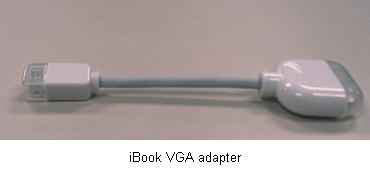
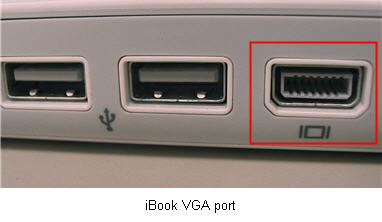
This cable should have been included with your laptop. Simply connect one end of the VGA adapter to the output port on your laptop (this port is next to the headphone connector on the iBooks), then connect the other end to the appropriate connector on the projector or external display.
Sometimes you may have to tell your computer to detect the new projector. You can do this by going into the Apple menu, selecting System Preferences, then Displays.
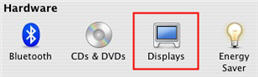
Under Display, click on the Detect Displays button.
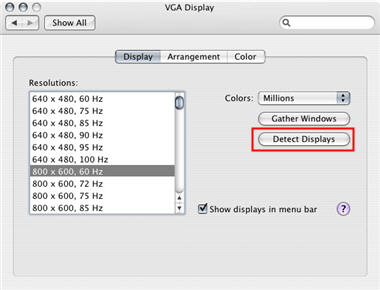
If you have an iBook laptop, you can only mirror your display. This means that you will see the same thing on both your laptop’s display and the projector. If you have a PowerBook, you have the option of showing a different display on the projector and on your laptop. You can display your Keynote or Powerpoint presentation on the projector, while viewing speaker notes and other controls on the laptop display.
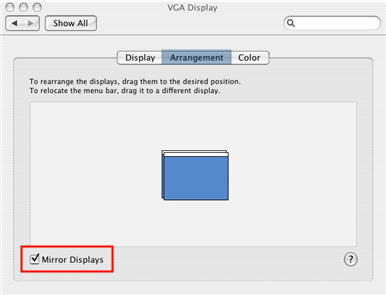
To set up a secondary display on your Powerbook, first choose System Preferences from the Apple menu, and then click Displays. Click on the Arrangement tab and make sure Mirror Displays is not selected (If there is no Arrangement tab, then your computer detects only one display. Check the cables to make sure there is a good connection between the computer and the projector.)
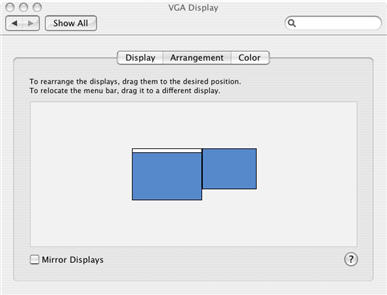
Drag the monitor icons in the Arrangement window so that the icon with the menu bar (representing your laptop’s display) is on the left and the icon without the menu bar (representing the projector) is on the right.
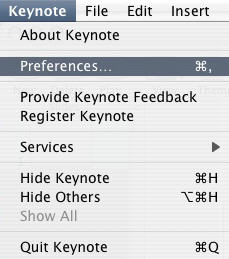
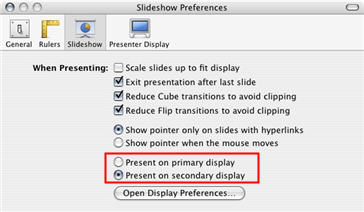
If you’re using Keynote for your presentation, choose Keynote, Preferences, and then click on the Slideshow tab. Next, select “Present on secondary display.”
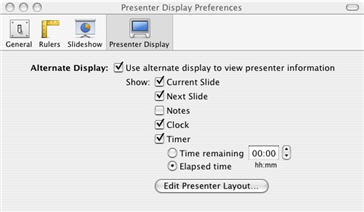
To view presenter information (such as notes) on your laptop while the presentation plays on the projector, select the Presenter Display tab and select “Use alternate display to view presenter information.”
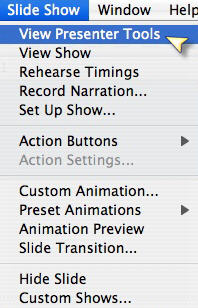
If you’re using Powerpoint 2004 for the Mac, open up your slideshow and then go to the Slide Show menu and select View Presenter Tools.