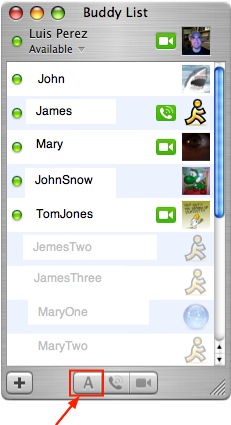
To start a chat, select the buddy you want to chat with and then click on the appropriate icon at the bottom of the window.
To start a text conversation with an available buddy:
- Double-click on a name in the Buddy List or click on the “A” icon.
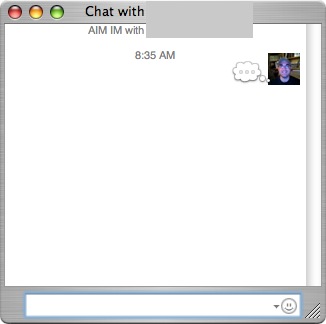
- A chat window opens. Type a message in the text box at the bottom of the window and press Return to send the message.
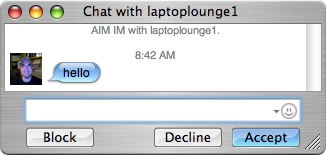
- A chat window with an Accept button will open on the other person’s computer.
 If he or she wishes to chat with you, you’ll receive a reply back in your chat window after the other person clicks on the Accept button and types in their message. The chat window will show your buddy icons as you communicate back and forth.
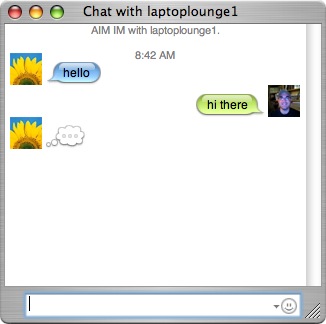
A bubble next to your buddy icons will indicate when either one of you is typing a message. The chat window also tracks the time each message is sent.
- To end your chat, simply close the chat window (say “Good Bye” first).
Audio/Video Chat:
If you and your buddy have a built-in or external microphone and have it enabled (in the Audio menu, make sure that Microphone Enabled is checkmarked), you can talk to each other over iChat just like you would on the phone.
To initiate an audio chat:
- Select your buddy in the Buddy List and click the phone button at the bottom of the window.
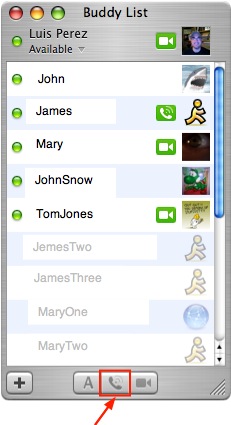
- An audio chat window opens on your end, and an invitation gets sent to your buddy (he or she may hear a ringing phone sound if he or she is also using iChat ).

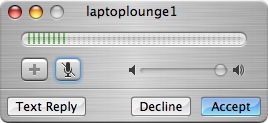
When he or she accepts, your Audio Chat window will show a “connecting” message, and then display a levels meter when you’re connected. You’re now free to start your conversation.

- To end the chat, close the audio chat window (type your good bye first, though).
If you and your iChat buddy both have a FireWire camera connected to your computers, you can video chat with each other (be sure that Camera Enabled is checkmarked in the Audio menu).
To initiate a video chat:
- Select your buddy in the Buddy List window and click the movie camera button at the bottom of the window.
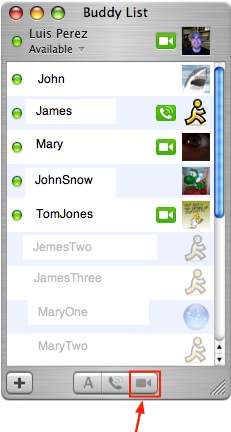
- A video chat window opens on your end, showing your face (or whatever you’ve got your camera pointed at), and a video chat invitation gets sent to your buddy.

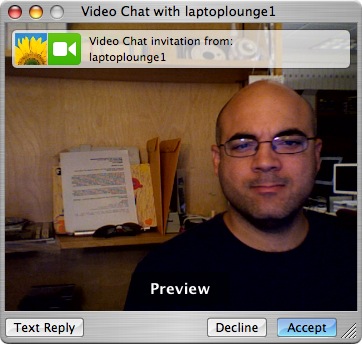
When he or she accepts, you’ll see his or her face in the video chat window too.
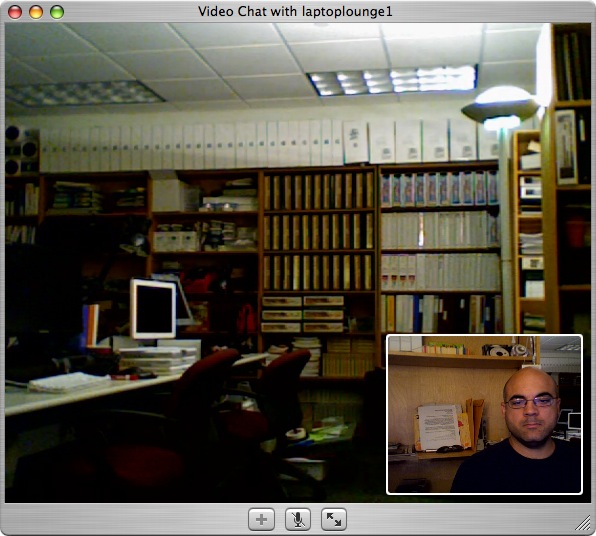
- To end the chat, close the video chat window
