A cookie is a small text file that is downloaded and saved to your hard drive when you visit a website. This text file contains information that can be read by the web server the next time you visit that same site. Cookies are used in a number of ways. One common use of cookies is to store login information for a website you visit frequently. That way you don’t have to enter your user name and password each time you visit the site. Another use of cookies is to track items you have added to a shopping cart while you visit an online vendor such as Amazon.com. The cookie can keep track of the items you select while navigating through the different sections until you decide to go to the check out page and purchase them. Cookies can also be used to save information you enter in a form. If there is a problem when you submit the form (if a field that is required is left blank, for example) the cookie can save you some typing and time by entering the rest of the information so that you only have to fill in the field with the problem.
Unfortunately, cookies can also be used by advertisers such as DoubleClick to track your web surfing habits so that they can deliver ads based on your interests. Many people consider this practice an invasion of their privacy. While it is possible to disable cookies in your web browser, this may limit the functionality of some websites that rely on them. For this reason, you may want to leave cookies enabled. However, you can delete cookies downloaded to your hard drive at any time.
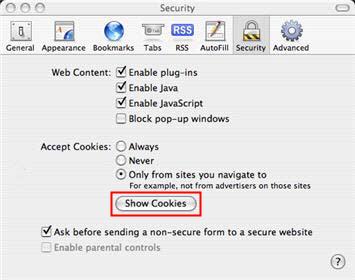
To delete cookies in Safari, select Safari, Preferences, Security on the menu bar, then click on the Show Cookies button.
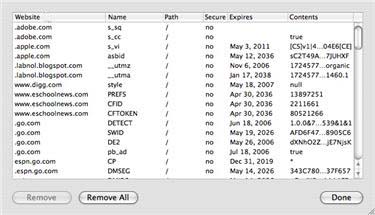
This will open up a window showing all the cookies stored on your computer. To remove any of them, make sure they are selected and then click on the Remove button at the bottom of the window. You can also remove all cookies stored on your computer by clicking on the Remove All button while you have this window open.
To delete cookies in Mozilla Firefox for the Mac, select Firefox, Preferences, Privacy and click on the Clear button.
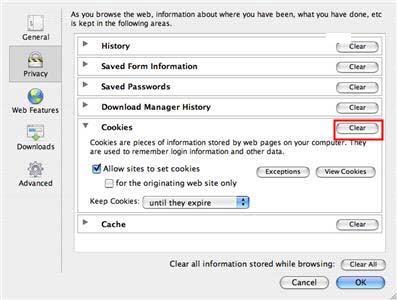
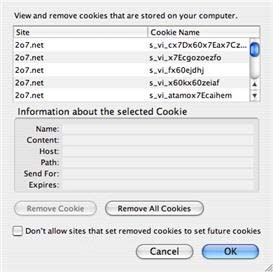
You can delete individual cookies by clicking on the View Cookies button, selecting the cookie you want to delete, and clicking on the Remove Cookie button.
If you have selected to save your login information for a website, you will have to reenter that information the next time you visit the website if you choose to delete cookies.
