There are many ways to copy a file in Windows. The simplest way is by using the Copy command which can be accessed by right-clicking on a file and selecting the command from the context menu.
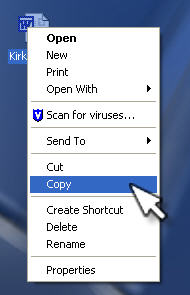
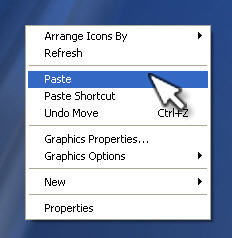
You can then left click somewhere else in the window so that the file is no longer selected, right click, and select Paste.
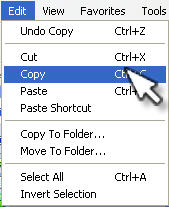
If you are viewing the file in an Explorer window (such as by double-clicking on a folder to open it with Explorer) you can copy a file by using the options under the Edit menu (Edit, Copy and Edit, Paste).
You can also use keyboard shortcuts (Control + C for Copy and Control + V for Paste). After the copy of your file is created, the file name will be preceded by “Copy of” to indicate that it is a copy.

You can also hold down the Control key while dragging the file to create a copy. A plus sign will appear on the file’s icon as you drag it to let you know you are creating a copy.
