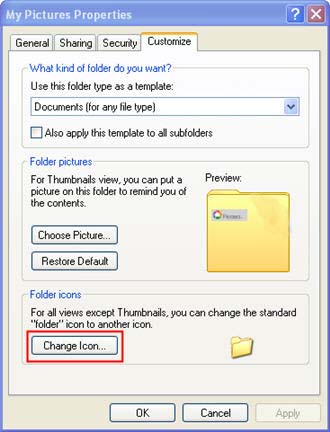
To access the properties of a file or folder, right-click on it and select Properties.
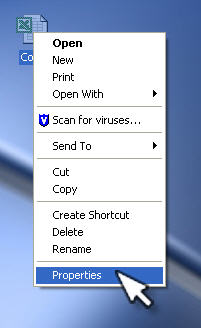
You can also Alt-click on a file or folder to access its properties. The General tab of the Properties dialog box will provide you with information such as the full path to the file or folder, its size, what application is configured to open it, and the date it was created, last modified, and accessed.
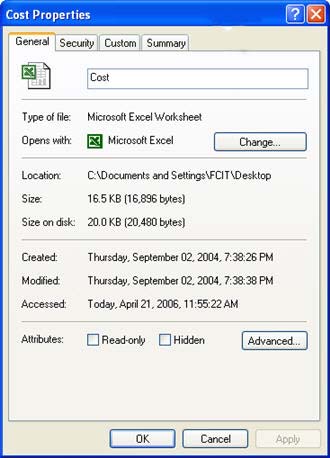
You will also see check boxes at the bottom of the window where you can make a file Read-only or Hidden. A Read-only file can be opened to see its contents, but it cannot be modified (any changes that you make to it cannot be saved), A Hidden file will not appear when you browse the contents of the folder where it is stored using Explorer, unless you set up Explorer to display Hidden files (in which case they will be displayed in a lighter color than regular files).
The General tab has an Advanced button.
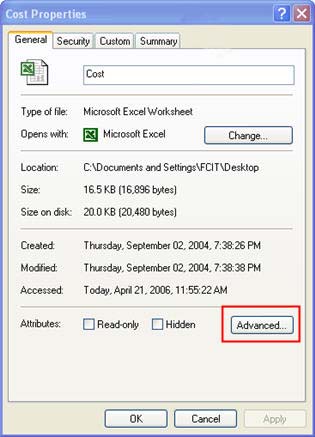
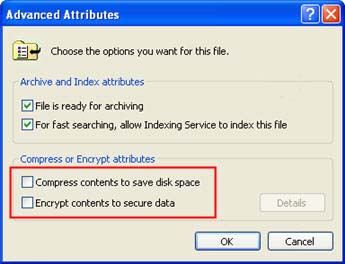
You can click on this button to enable compression for the file or folder, which will make it take up less space on your hard drive.
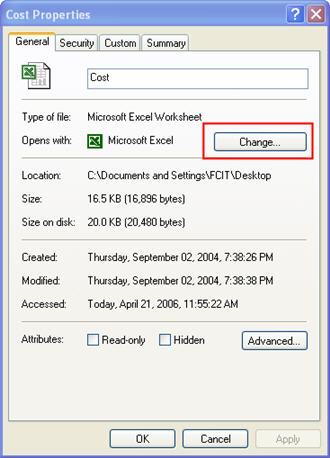
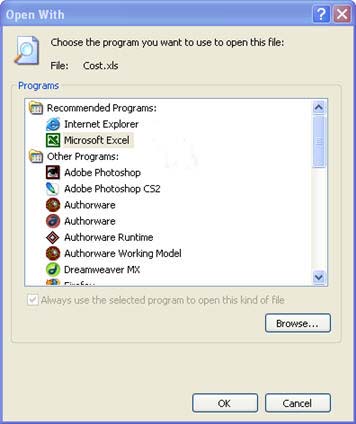
If you are accessing the properties for a file, you will also see a Change button at the top of the window. This button can be used to open the file with a program other than the one that is assigned to that type of file by Windows.
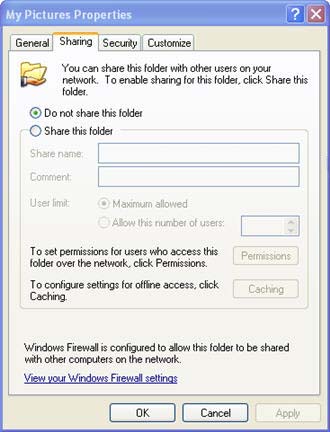
If you are viewing the properties for a folder, you will see a Sharing tab where you can set up the folder as a shared folder that can be accessed by others over the network.
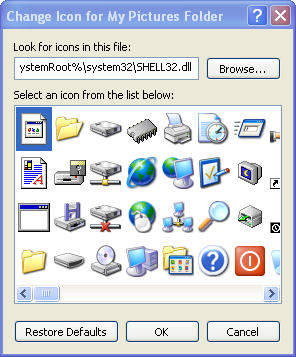
The Customize tab allows you to change the icon for the folder, and you can even assign a picture to be displayed when the folder is viewed as a thumbnail in Windows Explorer (View, Thumbnails).