Most of the time, you print documents directly from the program you used to create them, whether that program is a word processor such as Microsoft Word, or a drawing program such as Paint. Because most programs designed for Windows follow similar guidelines, you will find that the process of printing from any Windows program is very similar to the following steps. Many Windows programs also offer a Print button on the main toolbar. This button usually prints one copy of the document using all the default printer settings. If you print this way, you bypass the Print dialog box described in this task altogether.
If you want to change the default options (such as number of pages, etc.) before you print, print the document by following these steps:
- With the document open, select File, Print, or use the keyboard shortcut Control + P to access the print dialog box.
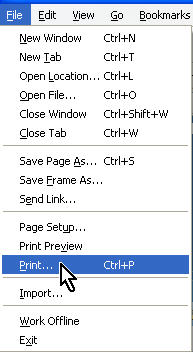
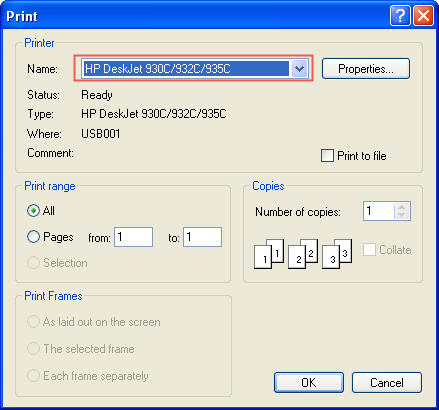
- Choose the Printer to Use. If you have access to more than one printer, use the Printer drop-down menu to select the printer you want to use.
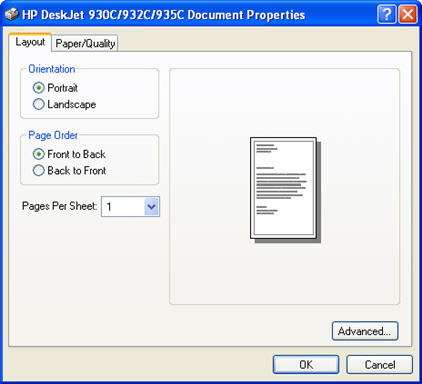
- Choose the Properties button to set special options for how you want to print your document. The Properties dialog box is used to set options that are used every time you use the same printer to print documents. These options will depend on the printer software, but they will usually include options to set the printing mode, orientation, and paper size. This is where you can select to print your document in draft mode, which can save a lot of time and printer ink because it prints characters in a lighter text. You can also change the orientation from portrait (the default) to landscape (so that it is rotated 90 degrees on the piece of paper). Additionally you can change the paper type if your printer supports different paper sizes. This is also where you would select labels.
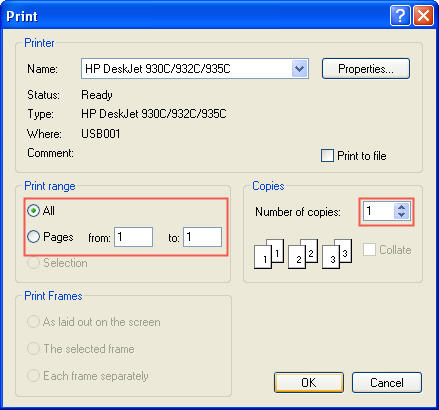
- Choose the pages you want to print, and the number of copies. You can specify to print a range of pages (1-5), specific pages separated by a comma (1,8,10) or a combination of both (1-5, 8,10). In the Number of copies box, type the number of copies of the document you want to print.
- After you have selected your printer, specified the pages and number of copies you want to print, and set any extra options, click OK to print. Most programs allow you to continue working while your document is being printed.
Most Windows programs offer a feature named Print Preview, usually available from the File menu, that lets you see your document onscreen as it will look when it is printed. This can be a handy way of making sure that your document looks the way you think it should before using up paper and ink to print it.
