You can block a contact at any time by selecting it in the contact list, right-clicking, and selecting Block.
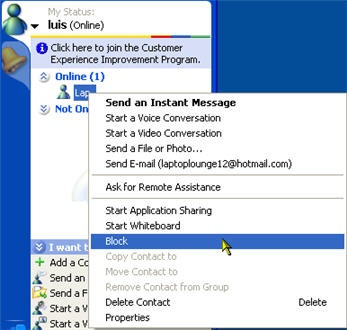
If you choose to block a contact, that contact will not be able to see your online status or send you chat messages.
You can also set up Windows Messenger to alert you whenever someone tries to add you to their contact list. To do so, select Tools, Options, Privacy and check the box next to “Alert me when other people add me to their contact lists”.
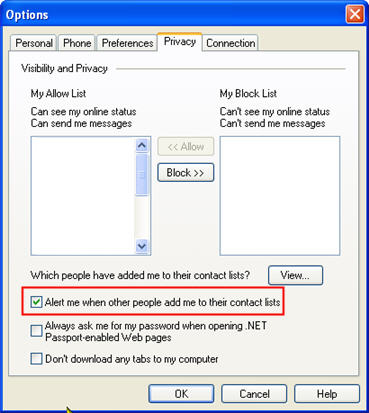
Once you have enabled this alert, you will get a prompt each time someone tries to add you as a contact, and you will have the option to either block or allow them.
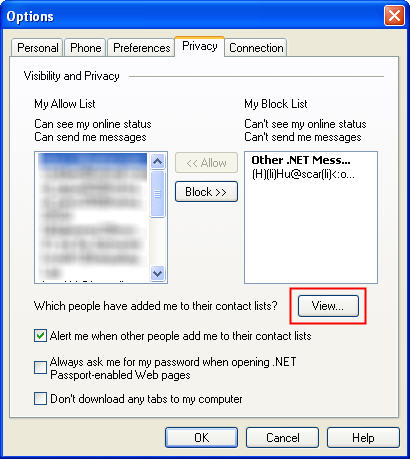
You can view your Block list at any time. Select Tools, Options and make sure the Privacy tab is displayed. When you click on this tab, you will see two columns, one for your Allow list and one for your Block list. You can use the Allow and Block buttons to move contacts between the two lists. When you move a contact from the Block list to the Allow list that contact will be able to see your online status and send you chat messages again.
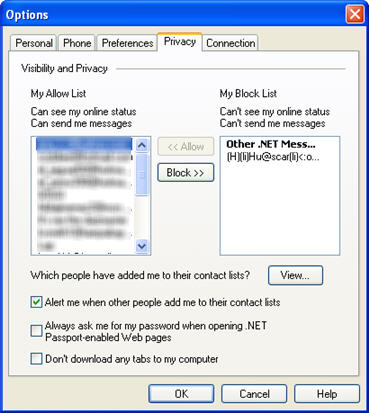
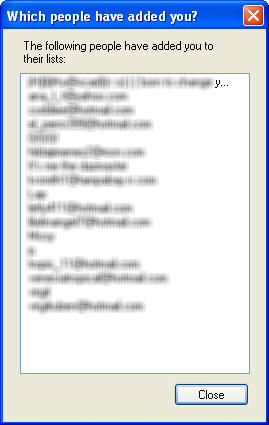
If you want to see who has added you to their contact list, click on the View button in the Privacy tab.