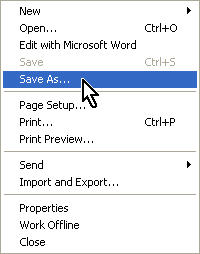
In Internet Explorer you can save a web page for offline viewing in two different ways. You can save a copy of the web page to your hard drive by selecting File, Save As.
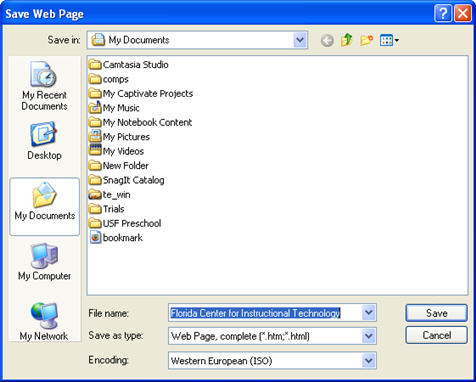
You should then choose Web Page, complete. When you select this option, IE will save the web page as well as a folder containing any pictures needed to display it.
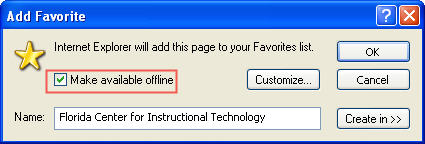
You can also make a web page available offline by creating a bookmark (a Favorite) of your web page and then selecting the Make Available Offline option when the Add Favorite dialog box opens.
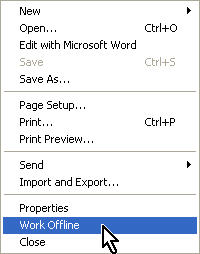
You can view any pages you have marked for offline viewing by choosing File, Work Offline and opening the saved web page (File, Open).
In Firefox, you can save a copy of a web page to your hard drive by selecting File, Save Page As. You can also use the free Scrapbook extension (a Firefox add-on) if you need more options for saving offline versions of web pages using Firefox.
There are also programs that allow you to save entire websites. A popular choice for this is WinHTTrack, a free application.
