Changing the picture used to identify you to other users in iChat is easy. You can use any picture you have saved on your hard drive, but better yet, you can take a snapshot with your iSight camera and use that as your buddy icon.
To use an iSight snapshot as your buddy icon:
- Make sure you have your iSight camera connected to your computer and open iChat by clicking on its icon in the dock.
- Click on the picture icon in the upper right. A small window will open showing you all the photos you can choose from for your buddy icon. You can add pictures to the list by dragging them in from a Finder window.
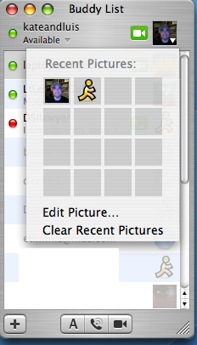
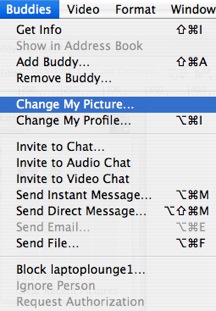
- To use an iSight snapshot, choose Edit Picture. You can also choose Buddies > Change My Picture from the application menu.
- Click on the Take Video Snapshot button (it has a picture of a camera on it).
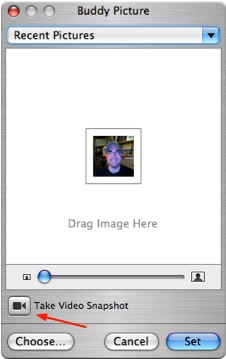
Your new snapshot will appear in the window above the button. You can then use the zoom slider to zoom in or out on your picture. If you zoom in on the picture, you can move the picture to change what part of it appears in the window. When you hover your pointer over the picture it will change to a hand icon to let you know you can move the picture.
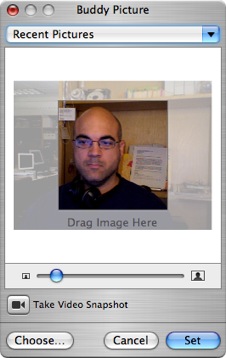
- Once you are happy with your picture, click on Set to make it your buddy icon.
Another way to add a snapshot is by opening the video window (double-click on the camera icon next to your name at the top of the window) then choosing Video > Take Snapshot (Shortcut: Command + Option + S).
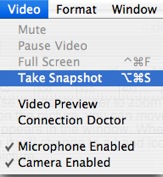
The snapshot will be saved to your desktop as a TIFF file you can then drag into the buddy icon area to set a new buddy icon.
