NOTE: As of March 16, 2016, Google ceased to support Picasa and encouraged users to migrate to Google Photos. The Picasa application will continue to function, however, and can still be used by those who prefer it. We are maintaining the Picasa posts within TechEase because we find that many people are still using the application and come to the TechEase site looking for the specific help we offer.
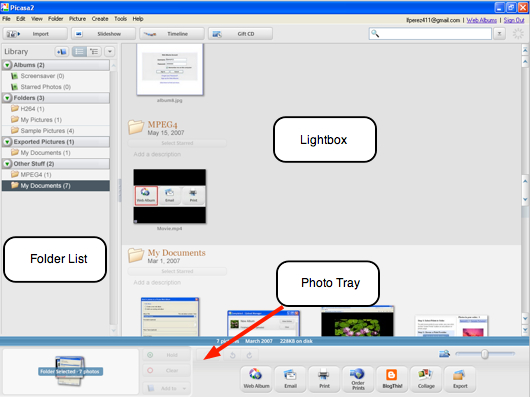
Once you have launched Picasa and allowed it to scan your hard drive, you will see an interface that is divided into three areas:
- the Folder List on the left which lists the folders on your hard drive containing photos as well as any albums you create
- the Lightbox, which is the main area where images in your folders are displayed as thumbnails
- and the Photo Tray, where you can perform several actions on one or more images selected from the Lightbox.
The Lightbox
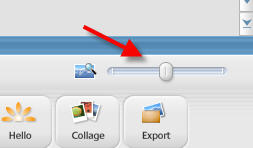
The Lightbox displays your photos and movies as thumbnails. You can change the size of the thumbnails displayed in the Lightbox by using the slider below it.
To navigate the Lightbox, you can use either the arrow keys on your keyboard or the scroll bar on the right. When you find a photo you need to edit, open it by double-clicking on it.
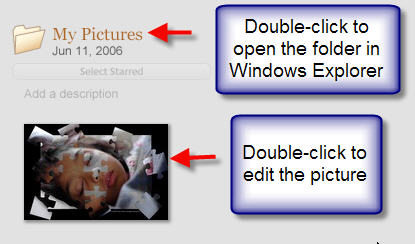
You can open a folder listed in the Lightbox using Windows Explorer by double-clicking on the large folder icon that appears next to the folder name.
The Photo Tray
The Photo Tray is used to collect photos and movies from one or more folders or albums so that you may work on them as a group. By default, the photo you have currently selected in the Lightbox is automatically added to the Photo Tray (you can select multiple photos by pressing and holding down the Shift key as you make your selections). You can also drag and drop photos from the Lightbox into the Photo Tray.
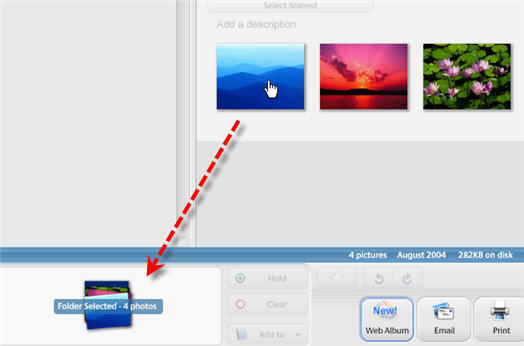
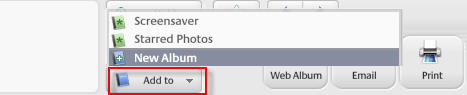
One common use of the Photo Tray is to add several photos to an album. After you add the photos to the Photo Tray, click on the Add to button and select the album you want to add the photos to, or select New Album to create a new album.
You can also assign a star rating to your photos using the button in the Photo Tray.
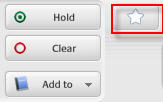
To remove photos from the Photo Tray, click on the Clear button.
https://etc.usf.edu/te_win/images/i/interfaceclear.png
The Folder List
The Folder List on the left hand side of the Picasa window organizes your images into three collections: Albums, Folders, and From Hello.
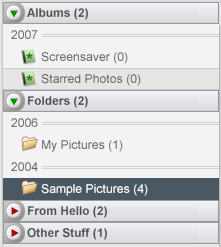
- Albums are the equivalent of keywords that can be used to organize your photos into categories. You can add a photo to more than one album in your Picasa library.
- The Folders collection displays folders on your computer that contain photos or movies, sorted by date, with the original folder names as they appear on your computer’s hard drive.
- The From Hello collection contains images you receive using Hello, a companion program to Picasa that can be used to share pictures using chat technology. Hello is available as a free download from Google.
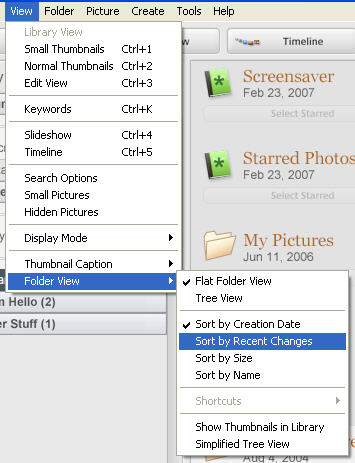
By default, your folders are sorted by creation date in the Folder List, but you can change this by selecting View, Folder View from the Picasa menu bar.
Changes you make to the folders in the Folders collection affect the matching folders on your computer’s hard drive. Renaming a folder in the Folders collection is the same as renaming it in Windows Explorer. Likewise, deleting a folder from this collection is the same as deleting it in Windows Explorer.
To rename a folder, double-click on the folder name and type in a new name. To delete a folder, right-click on the folder and select Delete Folder from the context menu.
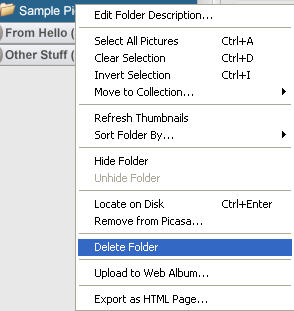
Whenever you choose to rename or delete a folder, Picasa will always prompt you to let you know that any changes you perform will affect the contents of your hard drive.
The Folder List allows you to manage your collections using drag and drop. You can move a photo from one folder to another by dragging it from its original location to a different folder. To select more than one photo, hold down the Shift key on your keyboard as you select photos in the Lightbox. If you move a photo into a different folder in the Folders collection, Picasa will remind you that you’re about to move the actual file on your computer’s hard drive. Click the “OK” button to move the picture to a new location.
