To set up a new email account in Mail, follow these steps:
- Open Mail by clicking on its icon in the dock.
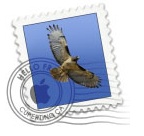
From the Mail menu, choose Preferences.
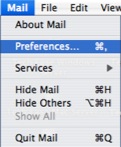
- Click the Accounts button to display the pane.
- To create a new account, click the Add (+) button in the bottom-left corner of the window.
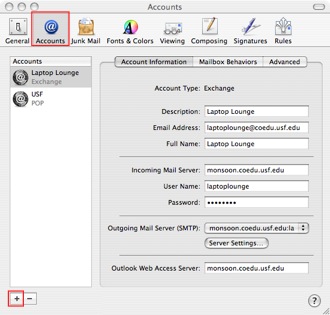
- In the dialog box, choose IMAP, POP, or .Mac for the account type (this will depend on your email provider’s servers).
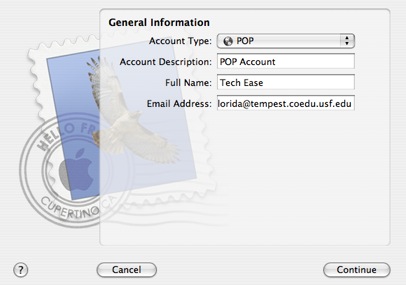
- Enter a descriptive name for your account (such as “School”) in the Account Description field.
- Enter your name (or whatever name you want displayed to the public) in the Full Name field.
- Enter your full email address in the Email Address field. This is the address that will be used when other people reply to your messages.
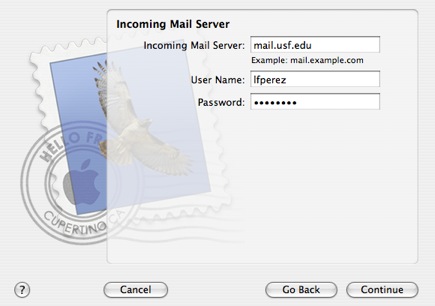
- Click Continue. You will then be asked to provide the address of the incoming mail server (most of the time this is something like mail.yourdomainname–for USF it’s mail.usf.edu) and your user name and password. Mail will attempt to connect to your incoming mail server to verify the settings you entered are correct. You can still click on Continue even if the connection to the incoming mail server was unsuccessful, but you will not be able to receive new messages until you fix the problem.
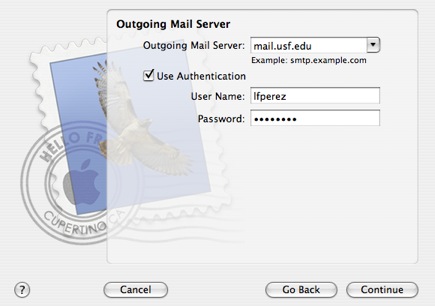
- Click on Continue. You will be asked to provide the address of the outgoing server (this is usually smtp.domainname, but sometimes it’s the same as the incoming server). Again, Mail will test the connection, but you can click on Continue even if it’s unsuccessful. You will not be able to send messages until you fix the problem.
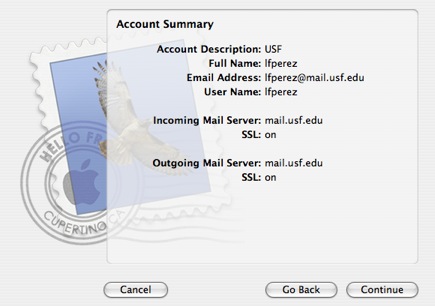
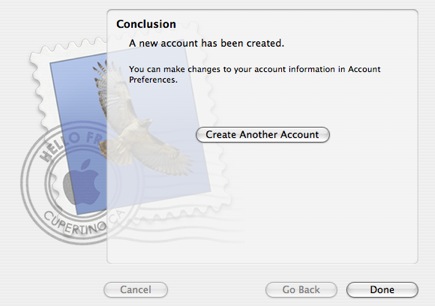
- Click on Continue. A summary screen will be displayed. Click on Continue, then Done to create the new account.
If you use multiple computers and are using a POP account, you may want to leave a copy of your messages on the server. That way they will be downloaded on each of the computers you use (assuming you set up the accounts on the other computers to also leave a copy of the messages on the server). To leave a copy of your messages on the server, select the Accounts pane in the Mail preferences window, then select the Advanced tab and uncheck the box next to Remove copy from server after retrieving a message.