The Finder is the file management application on the Mac. The Finder can be used to navigate your hard drive and display the contents of the folders and subfolders you use to organize your files on your hard drive. The Finder is always running in the background (its icon on the dock will always have a small triangle underneath it to let you know the application is running), and it is the active program any time you click on the desktop.
The Finder interface has several parts to it:
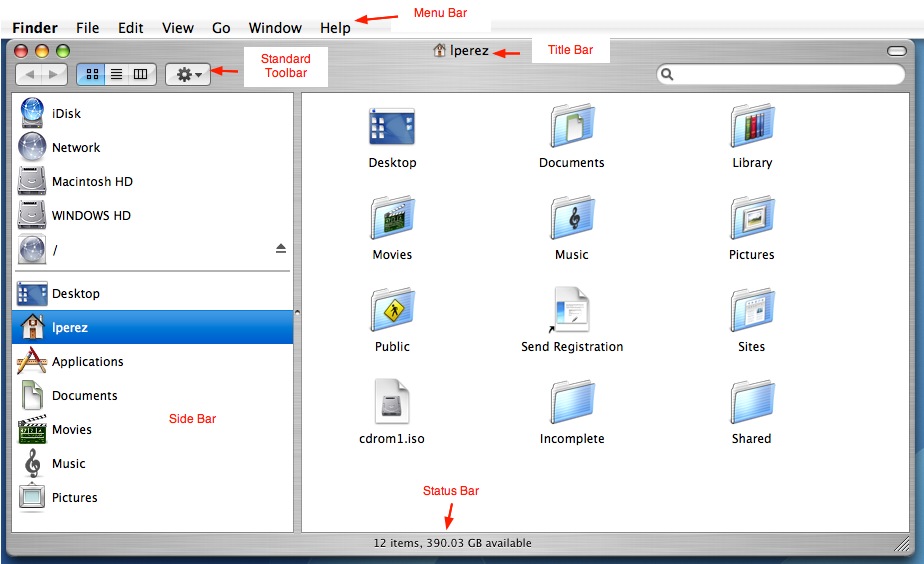
- The Title Bar: shows you the name of the folder you are currently in, as well as some buttons located on the upper left corner that can be used to work with open windows.
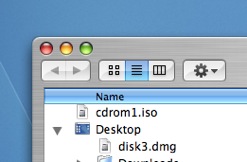
The red button (which will have an x when you hover over it) can be used to close a window, while the middle yellow button (which will have a minus sign when you hover over it) can be used to minimize a window to the dock. The green button (it will have a plus sign when you hover over it) can be used to maximize a window to be as large as it needs to be to show all of its contents. The maximize button also toggles between window sizes. When you click on it after resizing a window, it will return you to the previous size. To resize a window, all you need to do is drag from the lower right-hand corner (where you will see a series of lines in the shape of a triangle).

On the upper right corner of the title bar is a small button that allows you to switch between the OS X window style and the Classic window style, which lacks the side bar, the toolbar, and the status bar.

You can change your preferences so that double-clicking on the toolbar minimizes the open window to the dock. To set this preference, select System Preferences from the Apple menu, then Appearance, and check the box next to Minimize when double clicking a window title bar.
- The Menu Bar: this area of the interface includes the menu options you will use while working with your files and folders. You can use the File menu to create a new folder by selecting File, New Folder (or using the keyboard shortcut Command + Shift + N).
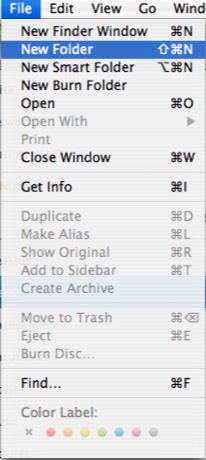
The Edit menu contains the copy, cut, and paste commands. Using the View menu, you change how the contents of your folders are displayed in the Finder. You can display your folders as icons, as a list, or in list view (each time you click a folder, its contents will be displayed on the next column to the right). Another menu option you might use a lot is the Go menu, which gives you quick access to the most commonly used folders (such as Applications, Movies, Pictures, and Music). The Go menu also has a Connect to Server… option that can be used to connect to other computers.
- The Standard Toolbar: allows you to navigate your folders using back and forward buttons that work like their counterparts in a web browser. The toolbar also has the view buttons that allow you to quickly change how folders and files are displayed.
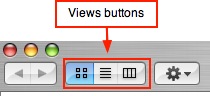
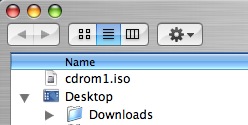
You can select icon view by clicking on the button with the four squares, list view by clicking on the button with the lines, and column view by clicking on the button with the columns (you can also use the keyboard shortcuts Command + 1, 2, or 3 to access these views). Next to the view buttons is an Action button that allows you to perform a lot of the actions available from the File and Edit menus.
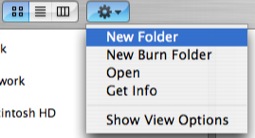
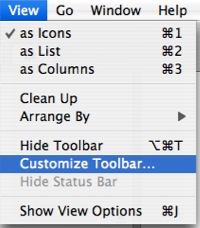
On the right hand side of the toolbar is the Search window, which can be used to search the contents of your hard drive for files or folders matching your search terms. You can customize the appearance of the toolbar by choosing View, Customize Toolbar… and dragging buttons from the window that opens up to the toolbar.
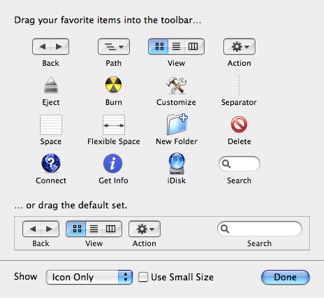
You can also drag separators to organize the buttons on your toolbar into categories. If you want to return your toolbar to its default state, drag the default set of buttons from the Customize window to the toolbar.
- The Side Bar: shows the most commonly used folders, such as your Applications folder where your programs are installed, and the default save locations for Documents, Movies, Music, and Pictures. At the top of the side bar, you will see the drives installed on your computer, including CD drives and any removable drives such as flash drives.
- The Status Bar: the bottom portion of the Explorer window displays information about the folder you have open, such as the number of items (the number of files and subfolders in that folder) and the amount of free space left on the currently selected drive.

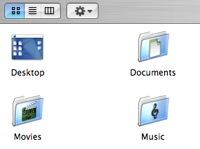
The Finder behaves differently depending on which view you have selected. When you are in icon view, you can open the contents of a folder by double-clicking on its icon.
In list view, you expand the contents of a folder by clicking on the small triange to the left of its name.
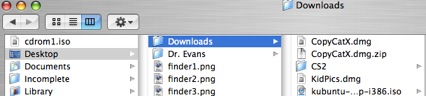
In column view, the contents of a folder will be displayed to the right of it when you select it.
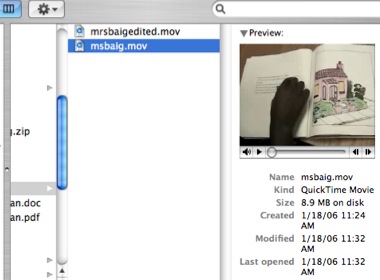
If you have a file selected, the column to the right will display a preview of its contents as well as some information such as the type of file it is, its size, and the dates it was created. With multimedia files, you will see controls that allow you to play the file.
You can then use drag and drop to move and copy files on your hard drive. You can drag files or folders from one location to another to move them. To copy a file to another location, hold down the Option key while you drag. OS X has a spring-loaded folders feature that makes it easy to perform drag and drop operations. To use spring-loaded folders, drag a file or folder until you are over the folder where you intend to drop it. After a brief delay, the target folder will open so you can drop the folder or file you want to move into it.
You can select multiple files or folders using two handy keyboard shortcuts. To select several contiguous files, select the first file then hold down the Shift key and select the last file. All the files in between will be selected so you can copy or move them. To select several non-contiguous files, hold down the Command key while you select each file or folder. You can also select multiple files by dragging a selection around them.
See It In Action
- The Finder (2m30s, 8.3 MB)
This movie shows you what the different buttons in a Finder window do.
