If you have the Tiger version (10.4) of OS X, you will be able to take advantage of Spotlight, an advanced search technology. Spotlight can search not only your documents, but also your emails, calendars, and more for the search terms you enter in its search box.
To begin a search with Spotlight, click on the blue magnifying glass icon in the menu bar.

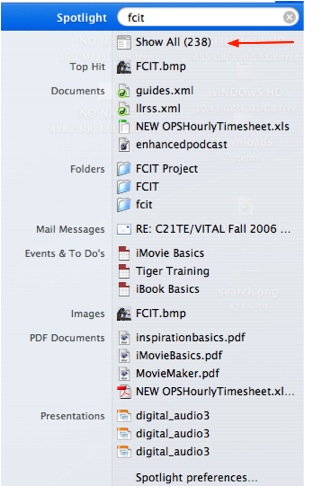
You can also hold down the Command key and press the space bar to activate Spotlight. When the search box is displayed, begin typing your search term and Spotlight will begin listing the results below the search box. If there are two many results for the search terms you selected, you can click on the Show All link to display them in a larger window (you can also open Spotlight to this window by using the keyboard shortcut Command + Option + Spacebar).
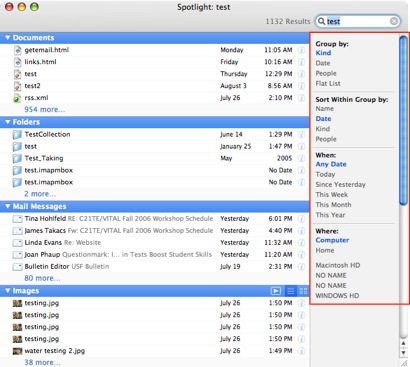
In the Spotlight window, you will see links on the right that allow you to group and sort your search results. You can also tell Spotlight to limit the search to specific part of your system, such as the Home folder (the location where all files for an individual user are saved).
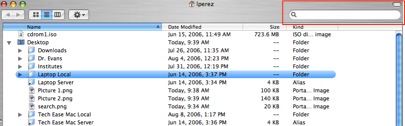
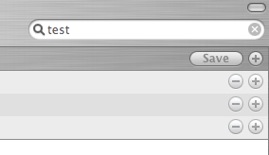
If you have a Finder window open, you can use Spotlight to search your computer by using the search box in the upper right corner of the Finder window.
When begin typing your search terms in the search box, the results will be displayed in the pane on the right side of the Finder window. A new toolbar will also appear below the search box. You can click on the different links on this toolbar to limit your search to specific parts of your computer.
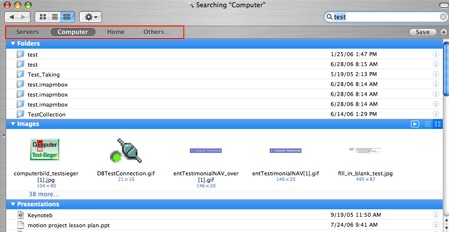
By clicking on the plus button all the way on the right, you can specify different criteria for your search.
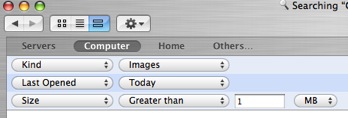
Once you have specified all the criteria for your search, click on the Save button to save it.
This will open up a dialog box where you can provide a name for your saved search. If you check the box next to Add to Sidebar, an icon for the saved search criteria will be added to your Sidebar.
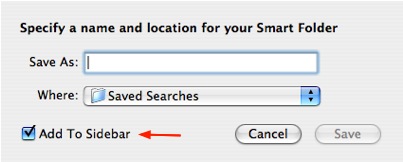
You can use this icon to quickly perform a search with the same criteria at a later time.
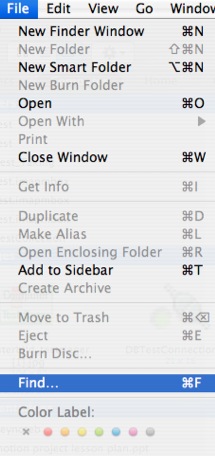
If you have not updated your operating system to Tiger, you can still perform a search by selecting File, Find (or using the shortcut Command + F) while you have a Finder window open.
See It In Action
-
Spotlight (2m25s, 9.6 MB)
This movie shows you how to use Spotlight to find files and folders on your computer.
