Most of the time, you print documents directly from the program you used to create them, whether that program is a word processor such as Microsoft Word or Pages, or a one of the iLife programs such as iPhoto. Many programs, such as Microsoft Word, also offer a Print button on the main toolbar.
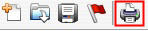
This button usually prints one copy of the document using all the default printer settings. If you print this way, you bypass the print dialog box described in this task altogether.
If you want to change the default options (such as number of pages, etc.) before you print, print the document by following these steps:
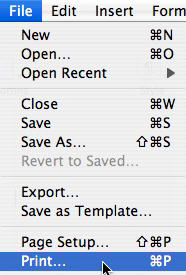
- With the document open, select File, Print, or use the keyboard shortcut Command + P to access the print dialog box. This will bring up a dialog box with three pulldown menus at the top.
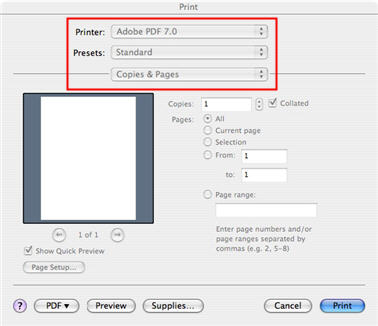
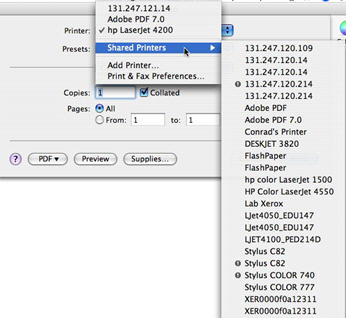
- From the first pull-down menu, choose the printer to use. Your default printer should already be selected. If you have access to more than one printer, use the Printer pull-down menu to select the printer you want to use. You can also select Shared Printers to send your print job to a shared printer on your network.
- You can set the options for your print job using the third pull-down menu from the top in the dialog box. Each time you make a selection using the pull-down menu, a different group of settings will be displayed in the main area of the dialog box. For example, if you select Cover Page, you can have a cover page printed to help identifiy your print jobs. This may be helpful if you are printing to a shared printer that is used by a lot of people.
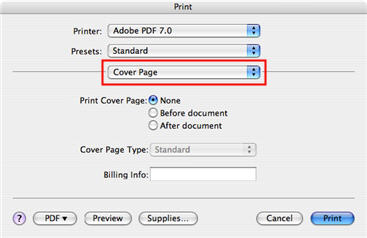
- The option you will use the most often is the one for Copies & Pages, where you can specify the number of copies you want to print.
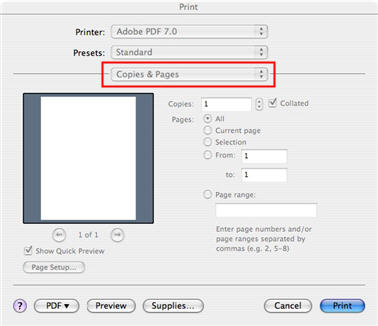
You can also specifiy that you want to print all of the pages in your document, only the current page, a selection you’ve made in the document, or a range of pages. You can specify a range of pages that are continuous (1-5), non-continuous (1,3,5), or a combination of both (1-3, 5, 6) by typing it in the text box.
- You can choose to print your document as a PDF file by selecting the Save As PDF option when you click on the PDF button.
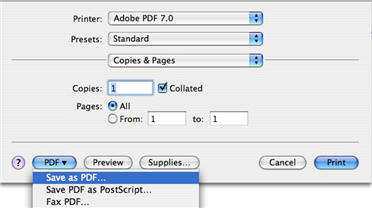
PDF is a format that is often used to share printable versions of documents on the Internet. It ensures that the document will print the same way regardless of what type of computer the person downloading it has.
Once you have set up your print job, click on Print to send it to the printer.
