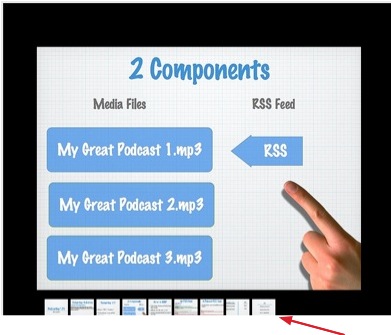
Flickr is an online photo hosting program that can also be used to host presentations online if you export your Powerpoint or Keynote slides as images.
To save your slides as images in Powerpoint:
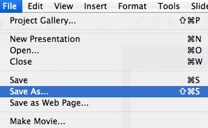
- Select File > Save As.
- Select JPG or GIF from the Format pulldown menu.
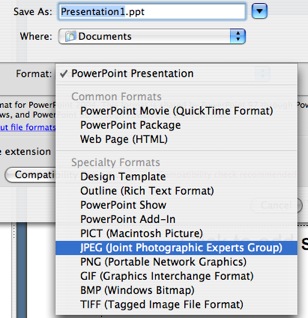
- Save your slides to a folder on your computer. Each slide will be an individual image file.
To save your slides as images in Keynote:
- Select File > Export.
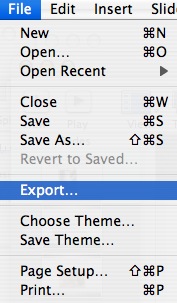
- Select the Images tab, then set your options. You can choose to save all slides or only selected slides. Select an image format (such as JPEG or GIF) using the pulldown menu. If you choose JPEG as the format, use the slider to choose the quality (the higher the quality the bigger your image files will be).
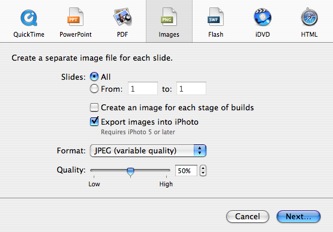
- Select a save location and click on Export.
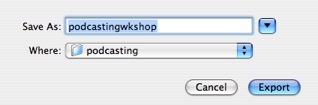
Once you have your slides as images, you have to upload these images to Flickr. The easiest way to do this is by using the batch uploader for Mac OS.
To upload images with the uploader:
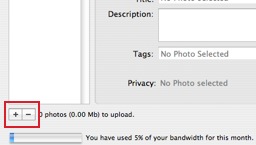
- Launch the program and click on the Add (+) button to select the images you want to upload.
- The images for the slides will appear as thumbnails on the left. Enter the tags, title and description for each image by selecting it from the list on the left and entering the information on the fields that appear on the right. Click on the Change button next to Privacy if there are any images you want to mark as private.
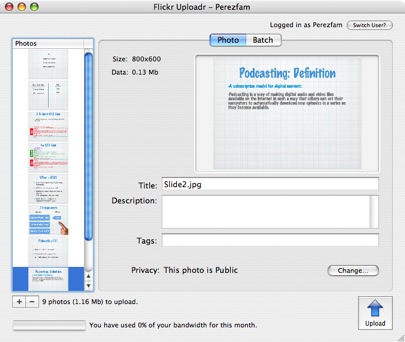
- Click on Upload. The images will open on Flickr using your default web browser.
After you upload the images to Flickr, the next step is to organize them into a set that can be played as a slideshow:
- Click on Organize at the top of the Flickr window.

- This will bring up the Organizr. Drag the slides you want to add to the set to from the Findr (the area at the bottom of the window) to the canvas.
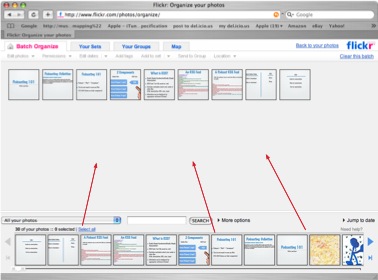
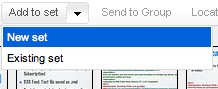
- Select Add to Set > New Set from the pulldown menus at the top of the window.
- Enter a name for your set and rearrange your images into the order you want them to appear when the slideshow plays (drag and drop the images to change the order of the slides).
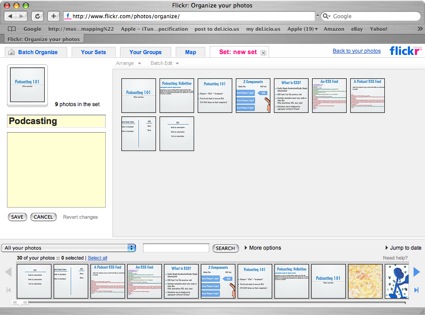
- Click on Save.
Once your presentation is set up as a set, anyone can go to your Flickr page (https://www.flickr.com/photos/yourusername) and click on the set on the right to open it. They can then click on the View as slideshow link at the top of the window to start the slideshow.
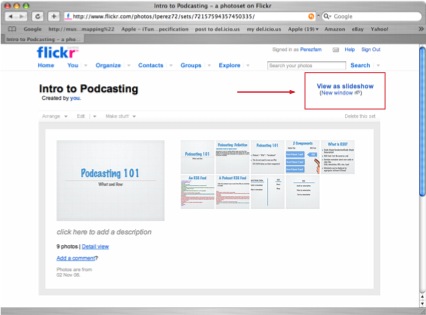
The slideshow controls will appear when the person viewing the slideshow hovers over the top portion of the slideshow area.

A navigation bar showing all the slides in the presentation will be displayed if they hover over the bottom part of the slideshow area. The person viewing the slideshow can skip around to different slides by clicking on them.