The Safari web browser that is installed with OS X is equipped with many useful features to assist you in navigating through the Web.
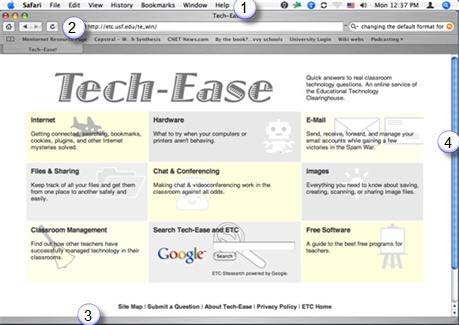
Some of these features are:
Menu bar
The menu bar, located at the very top of the screen, can be accessed using the mouse. When you hold down the mouse button over an item in the main menu, a submenu is “pulled down” that has a variety of options. Actions that are in black can be performed, while actions that cannot be performed will be in gray or lightened. The submenus provide keyboard shortcuts for many common actions, allowing you to implement the functions faster than using the mouse.
Address Bar
The address bar is also located at the top of the browser window and it contains navigational buttons for the Web as well as an area where you can type the URL of any web site or page you want to visit. By default, the following buttons are included in the Safari address bar:
| Command | Function |
|---|---|
| Back | Takes you to the previous page |
| Forward | Takes you to the next page |
| Reload | Refreshes/redisplays current page |
| Add Bookmark | Saves the address of the page you’re on so you can visit it at a later time |
You can easily customize the buttons available in the address bar by choosing View, Customize Address Bar…
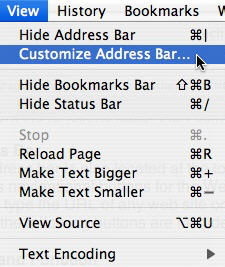
A window will open with different buttons you can drag to the address bar.
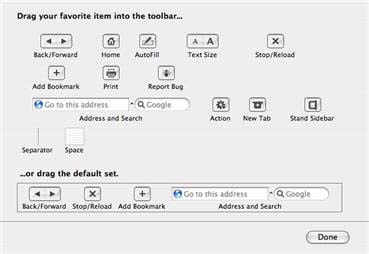
For example, you can add a home button that will take you directly to the page you have set as your home page when you click on it, or a Stop button that will stop a page from completely loading. You can also drag the default set shown at the bottom of the window to reset your address bar to its default configuration.
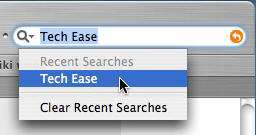
The address bar also includes a search area where you can search for pages or sites containing your search terms using Google. If you want to see previous searches you have performed, click on the small downward facing arrow next to the magnifying glass icon in the search area. You will then see a list of your most recent searches. At the bottom of the list, you will see an option to Clear Recent Searches if you want to do so.
Status bar
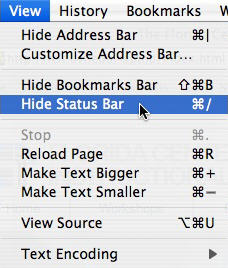
The status bar is located at the very bottom of the browser window. The status bar shows you the full URL when you hover over any link on a web page. If you do not want to display the status bar, you can turn it off by selecting View, Hide Status Bar.
Scroll bar
The scroll bar is the vertical bar located on the right of the browser window. You can scroll up and down a web page by placing the cursor on the slider control and holding down the mouse button.
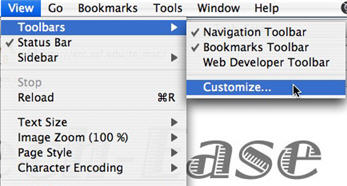
If you have installed the Mac version of Mozilla Firefox, the layout of your browser window will be very similar to the one described above. One difference is that to add new buttoms to the toolbar (it is not called the Address Bar in Firefox) you select View, Toolbars, Customize.
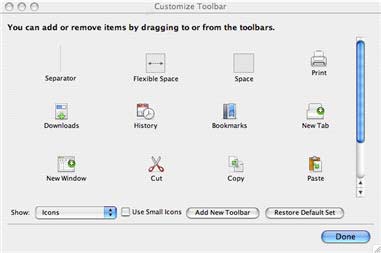
Just as with Safari, you can then drag the buttons you want to add to the toolbar, or you can click on the Restore Default Set button to reset your toolbar to its default configuration.
Firefox for the Mac also differs from Safari in that it allows you to use different search engines to perform web searches. It is not limited to just Google. To see a list of available search engines you can use, click on the small downward facing arrow next to the magnifying glass icon in the search area. This will display a list of search engines.
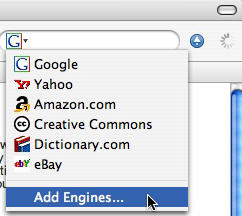
You can also select Add Engine to go to a page on the Mozilla web site where you can add even more search engines to the list.
