With tabbed browsing, you can open more than one web page in one browser window.
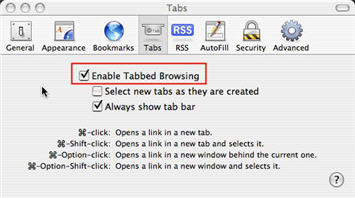
To use tabbed browsing, first you need to make sure it is enabled in the Safari preferences. To enable tabbed browsing, select Preferences from the Safari menu, then click on the Tabs icon. Tabbed browsing will be enabled after you place a check mark in the box next to Enable Tabbed Browsing.
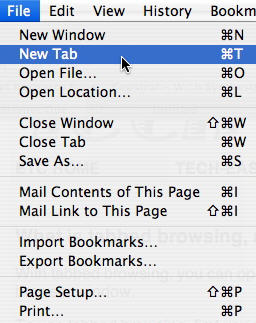
To open a new tab, you can select File, New Tab (or use the keyboard shortcut Command + T).
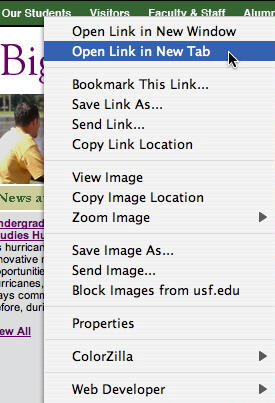
You can then enter a URL in the address bar to open up a web site in the new tab. You can also open a web page in a new tab by holding down the Command key and clicking on a link. Once you have several sites open in tabs, you can switch between them easily by clicking on the titles that appear on the tabs. You can also close tabs you no longer need to have open by clicking on the X next to that tab’s title.

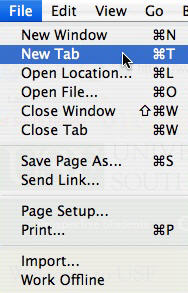
Tabbed browsing is also available in Mozilla Firefox and it’s enabled by default. To open a new tab in Firefox, select File, New Tab (or Command + T).
You can open a new tab from a link in Firefox by right-clicking on the link and selecting Open in New Tab