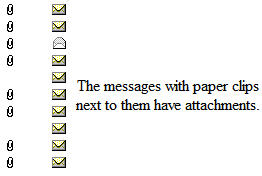
When you get a new message with an attachment you will see a paper clip icon next to that message’s subject line in your mailbox.
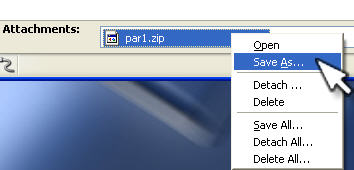
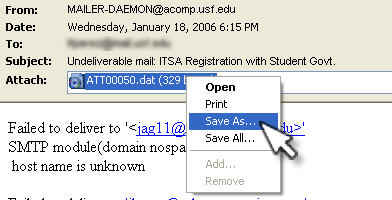
You can open the message and use the appropriate menu option or shortcut to save the attached file(s) to your hard drive. In Outlook 2003 and Outlook Express, right-click on the attachment, select Save As, and then type a file name and specify the location where you want to save the attachment.
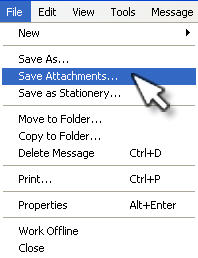
You can also select File, Save Attachments to save all the attached files to your hard drive.
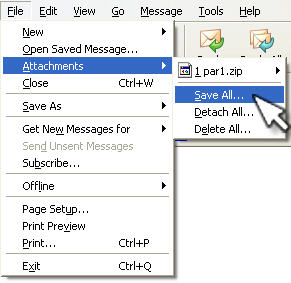
In Thunderbird, this option is under File, Attachments. Thunderbird allows you to save all attachments sent with a message or an individual file. To save all attachments sent with a message, choose File, Attachments, Save All.
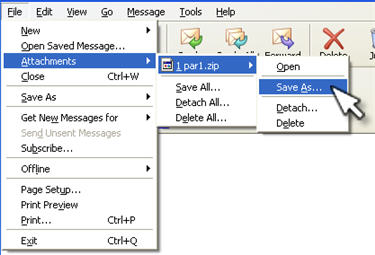
To save an individual message, choose File, Attachments, the file they want to save, and Save As.
As with Outlook, you can also right-click on the file in the Attachments field at the bottom of the message window and select Save As.