A signature is text that appears at the bottom of your emails and is often used to include contact information. Some users also use the signature to personalize their emails by including a favorite quote.
To create a new signature in Outlook 2003, select Tools, Options, and click on the Mail Format tab. In the Signatures section, click on New to open the Create New Signature dialog box. After entering a name and a description for your signature, select Start with a blank signature and click on Next. You can begin typing the text for your signature in the Signature text section. When you are finished typing your signature, click on Finish, then OK to return to the options dialog box.
In Outlook Express, first choose Tools, Options and then select the Signatures tab. Click on the New button to set up a new signature. You can use the Rename button if you want to rename the signature after you have created it, or you can click on Remove to delete it and start over.
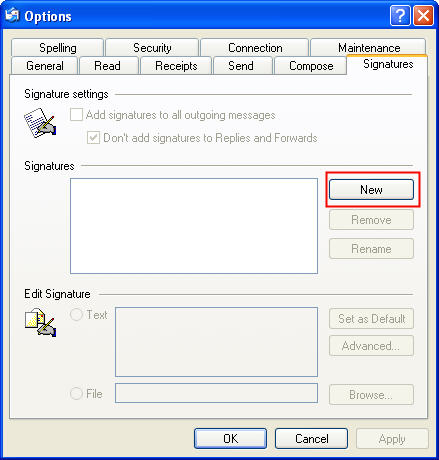
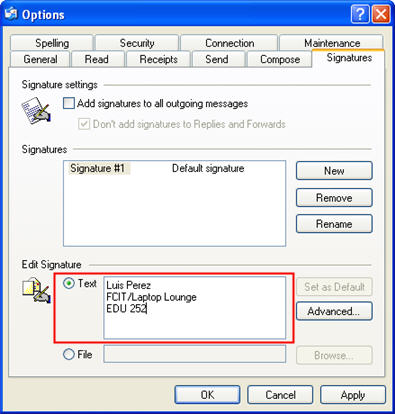
Next, click on the Text button at the bottom of the window and begin typing the text for your new signature.
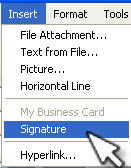
You can set up more than one signature. When creating a new email, you can use the Insert menu’s signature option to specify which signature to use if you have more than one.
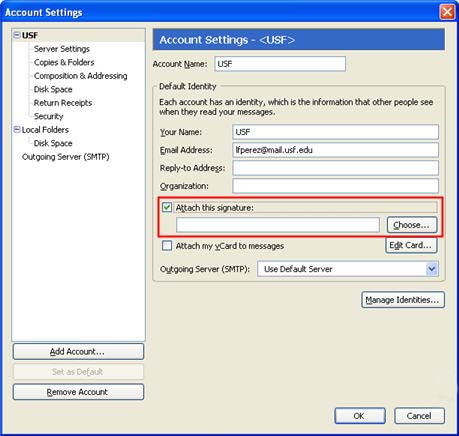
In Thunderbird, you have to create the signature as a separate text file (using a program such as Notepad). Once you have created the text file, select Tools, Account Settings. Select the name for your account on the left, and then check off the box next to Attach this signature. Next, use the Choose button to locate the text file you created with your signature. The signature will now be added to your outgoing messages.