One way to store more data when you are low on hard drive space is by using compression to make the files and folders you already have on the drive take up less space. In the past, utilities such as Winzip were used for this purpose, but Windows XP has a built in compression utility that does the same job.
To create a compressed folder, open My Computer and locate the folder where you want to create the compressed folder (also known as an archive). Open that folder, then select File, New, Compressed (zipped) folder.
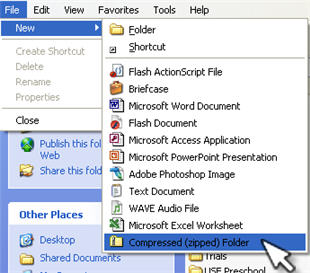
Type a name for the compressed folder and press enter. Your new compressed folder will have a zipper on its icon to indicate that any files contained in it are compressed.

To compress files (or make them smaller) simply drag them into this folder. To uncompress them (or return them to their original state) drag them out of the compressed folder.
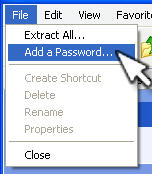
Compressed folders even support a password option, allowing you to use them as a place to store sensitive information. You should be careful when using this feature, however. The password is not recoverable. If you forget it, your data stored in the compressed folder will be lost forever. To add a password, open the compressed folder and select File, Add a Password.
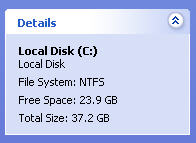
In addition to the compressed folders feature, Windows XP supports another type of compression if your hard drive is formatted as an NTFS volume. You can see it if your hard drive was formatted with NTFS by opening My Computer and then taking a look at the details section on the lower left.
NTFS compression differs from compressed folders in that the NTFS compressed folders appear like any other folders. The operating system compresses and decompresses them on the fly each time you access and close them. NTFS compressed folders do not have a zipper on their icon. However, you can set up Windows to display them in a different color if you want to know which folders are NTFS compressed and which ones are not.
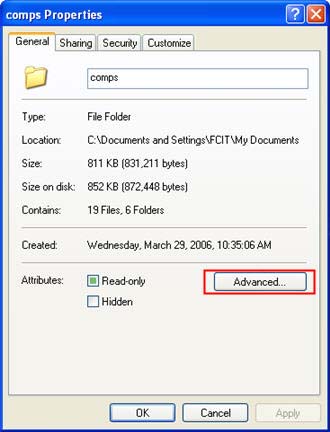
To set up an NTFS compressed folder, right-click on the folder you want to use and select Properties. In the General tab, click on the Advanced button.
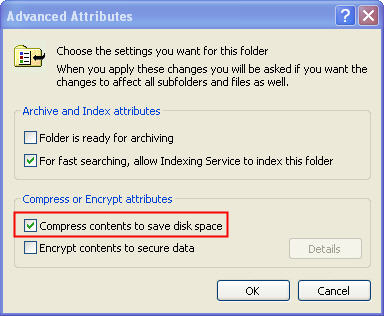
Toward the bottom of the window you will see a check box that will allow you to Compress contents to save disk space.
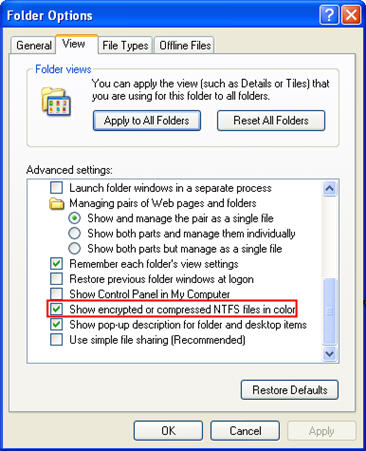
If you want to display your NTFS compressed folders using a different color, select Tools, Folder Options from an Explorer window. Then in the View tab, make sure Show encrypted or compressed NTFS files in color is checked.