![]() | Quick answers to real classroom technology questions. An online service of the Educational Technology Clearinghouse. | ||
| ETC HOME |
TECH-EASE HOME |
FILES FAQ |
SEARCH |
How do I rename a file in Windows?There are many ways to rename a file in Windows. The easiest way is by right-clicking on the file and selecting Rename. You can then type a new name for your file and press enter to finish renaming it.
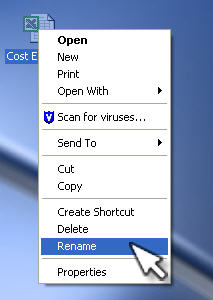
A quicker way to rename a file is by first selecting it by left clicking on it, then pressing the F2 key. This will select the file name so that you can begin typing a new file name, including the file extension. The same thing can be accomplished by first left clicking on the file's icon, then left clicking once again on the file name to highlight it (this may be a little tricky, if you do this too quickly you will end up double-clicking on the file, which will open it). Once the file name is highlighted you can enter a new name and press Enter to rename your file.
|
Additional Websites
|
||
| ETC HOME |
TECH-EASE HOME |
FILES FAQ |
SEARCH |
Site Map | Submit a Question | About Tech-Ease | Privacy Policy | ETC Home
Tech-Ease for Windows is your source for just-in-time answers for classroom technology questions. A companion Tech-Ease for Mac site is also available. This collection is a part of the Educational Technology Clearinghouse and is funded in part by a grant from the Florida Department of Education. Copyright 2008 by the Florida Center for Instructional Technology, College of Education, University of South Florida. |
|||