Before you can copy files to a CD (known as “burning”) using Windows XP you need to have a blank CD-R or CD-RW you can use. The difference between the two is that CD-Rs can only be written to once while CD-RWs can be written to more than once. Both types of media support up to 700 MB of data.
When you insert a blank CD-R or CD-RW in Windows XP, a dialog box should come up where you can select to Open a writable CD folder. If you always want Windows XP to open a writable CD folder when you insert blank media (CD-R or CD-RW) make sure the checkbox next to Always do the selected action is selected.
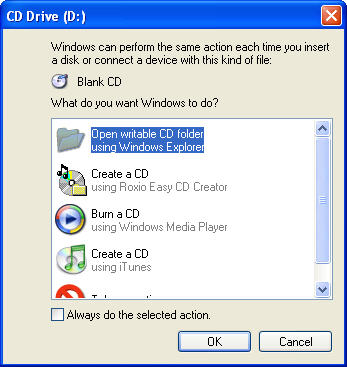
When you click on Ok, a folder will open up where you can drag the files or folders you want to copy to the CD. When you drag a file or folder to this folder, Windows XP makes a copy of it to a special staging area until it is time to burn it to the CD. If you change your mind and delete any of the files or folders in the writable folder, they will only be removed from the staging area. The original files or folders will remain on your system.
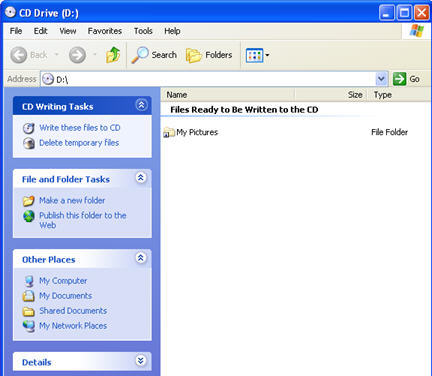
When you are finished adding all the files and folders you want to burn into the writable folder, select Write these files to CD from the task bar on the left. A wizard will start up to guide you through the process of creating your CD. On the first screen, you can give your CD a name (up to 16 characters).
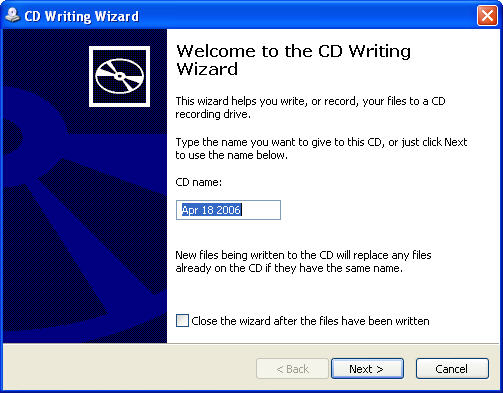
Click on Next and the wizard will show a progress bar to let you know how much of your data has been copied to the CD.
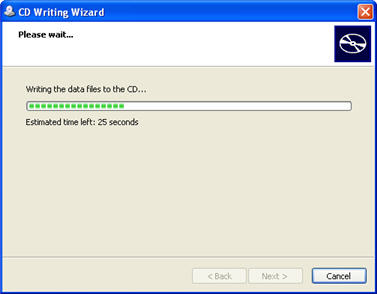
When the process is complete, a dialog box will alert you and give you the option of making additional copies.
