While you are chatting with your contacts using Windows Messenger, you have the ability to send them a file at any time. You can also receive files from your contacts as well.
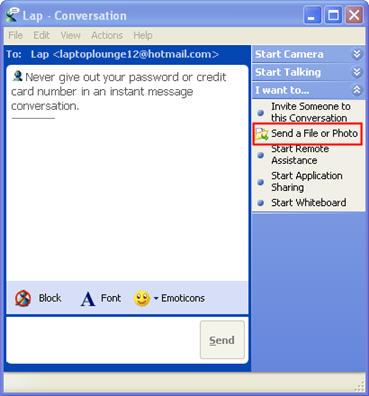
To send a file to a contact, start a conversation and then click on the Send a File or Photo link on the sidebar on the right.
Select a file to send, and click Open to send it. Your contact will then receive a notice that will ask them if they want to either accept (Alt + T) or decline (Alt + D) your file.
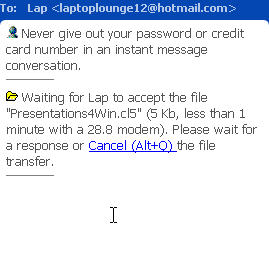
You will also see a message in the conversation window where you can click on a link to cancel the file transfer if your contact is not responding. The file transfer will start once they accept.
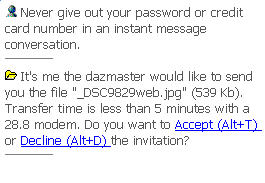
If your contact sends you a file, you will first receive a notice where you can either accept (Alt + T) or reject (Alt + D) their file.
If you select to accept their file, you will receive a notice letting you know that some files may contain harmful viruses.
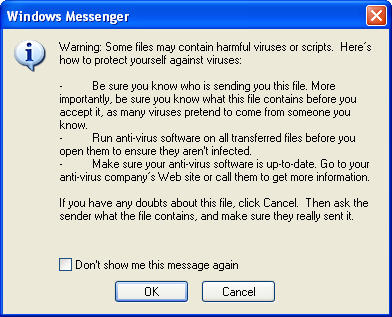
Click on OK if you know the contact sending you the file and the transfer will start. When the transfer is complete you will receive another notice with a link you can click on to open the file.
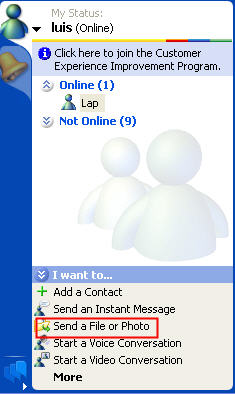
You can send a file to a contact without opening a conversation window by selecting the contact in the contact list and then clicking on the Send a File or Photo link on the Actions Pane at the bottom of the Windows Messenger window (select Tools, Show Actions Pane if it is not visible).
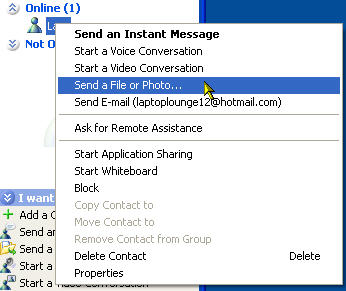
You can also right-click on a contact and select Send a File or Photo…
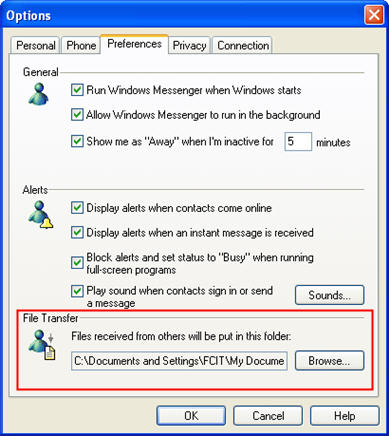
To change the default folder where files are saved when you choose to accept them, go to Tools, Options, Preferences and select a folder under File Transfer.