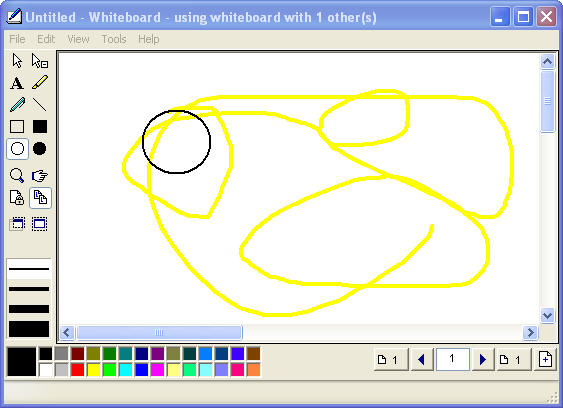
Windows Messenger allows you to collaborate with your students using the whiteboard feature. You can use the whiteboard to work together on equations and other math problems, or to work together on any type of diagram.
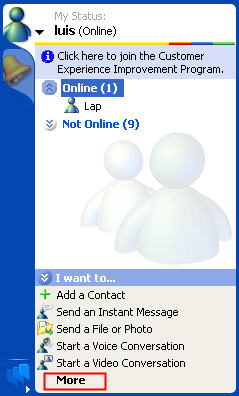
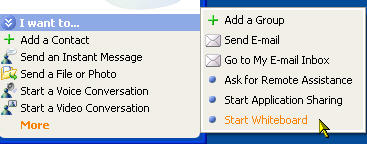
To start a new whiteboard session, you can select a contact in the contact list and then click on More in the Actions Pane, then Start Whiteboard.
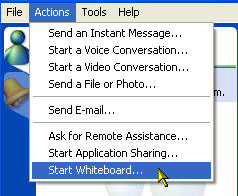
Another way to start a whiteboard session is by selecting Start Whiteboard… from the Actions menu.
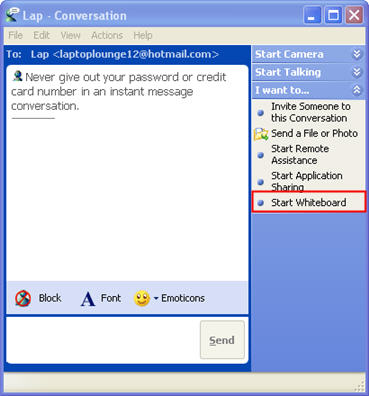
If you have already started a text chat and want to add a whiteboard, click on the “I want to” link on the sidebar on the right of the conversation window, then select Start Whiteboard (select View, Sidebar if the sidebar is not visible).
You may get a warning if you have a firewall installed. Make sure you click on Allow or Unblock to allow the whiteboard to open. Once the whiteboard opens, you will be able to use the tools on the left to draw on the canvas that appears on the right. Your contact will see everything you draw on the canvas in real time, and they will be able to draw as well.