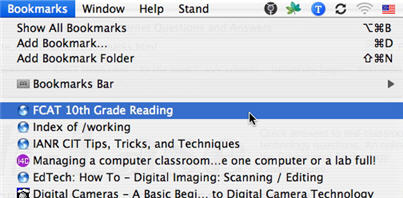
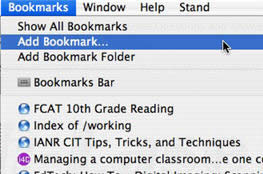
A bookmark allows you to save the address of a website so you can visit it at a later time. To create a new bookmark in Safari, choose Bookmarks, Add Bookmark… (or use the keyboard shortcut Command + D) while you are on the site you want to save as a bookmark.
This will open up a window where you can enter a title for your bookmark if you want it to be different from the page title chosen by the page’s author.
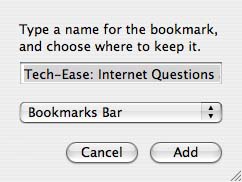
You can also select to save your bookmark to either the Bookmark Menu (which is visible when you choose Bookmarks from the menu bar) or to the Bookmarks Bar (which is the area of the browser window just below the address bar). You can also save your new bookmark to a folder.
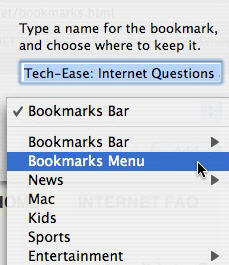
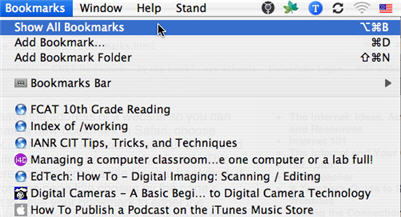
Safari already includes a few folders with bookmarks in them (which are called collections) when it is installed. You can view all the collections you have created, as well as the ones installed by default with Safari, by choosing Bookmarks, Show All Bookmarks.
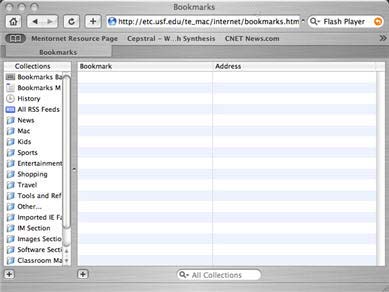
You will see the collections listed in a column on the left. You can click on the plus sign at the bottom of the left hand column to add a collection to the list.
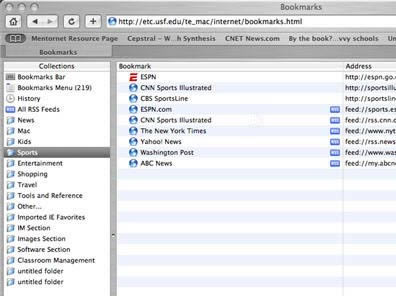
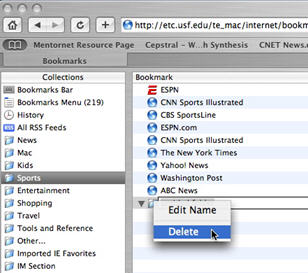
When you select a collection (such as Sports or Kids), the bookmarks in that collection will be displayed on the right.
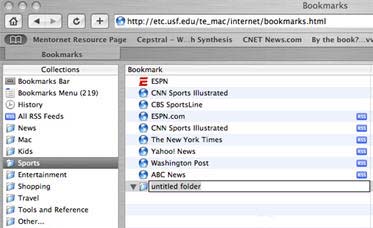
To change the collection under which a bookmark is listed, you can simply drag the bookmark from the column on the right to the collection you want it to be in on the left. You can further arrange your bookmarks by creating folders within each collection, which you can do by clicking on the plus button below the right hand column.
To delete a collection or folder, right-click on it and select delete.
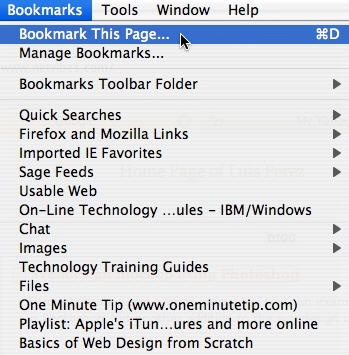
If you are using the Mac version of Firefox, you can add a bookmark by choosing Bookmarks, Bookmark This Page (or using the shortcut Command + D).
As with Safari, you can manage your bookmarks by choosing Bookmarks , Manage Bookmarks.
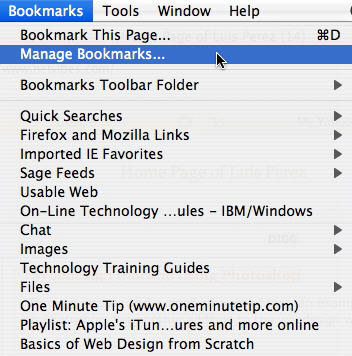
Whenever you want to view the web page you have saved as a bookmark, choose Bookmarks from the menu bar at the top of the browser window and then select the bookmark you want to open.