An attachment is simply an additional file sent with an email message. An attachment can be an image file, a Word document, or one of many other supported file types. When your recipients open your message, they can double-click on the attached file to open it with the program assigned to that file type on their computer. If they do not have a program installed that can open that type of file, they may not be able to open the attachment. Also note that some email providers place limits on the size of the files that can be attached to email messages, while others block certain types of attachments (such as executable files with the .exe extension) to prevent viruses.
To attach a file to an email, you will first open a New Message window and then click on the Attach icon after addressing your message and entering an appropriate subject line and body text. The Attach icon is a paper clip in most email programs.
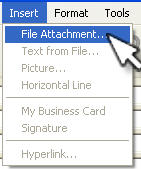
In Outlook 2000 and Outlook Express, you can also choose Insert, File (Outlook 2003) or File Attachment (Outlook Express).
In Thunderbird you can also choose File, Attach, File(s) to add attachments.
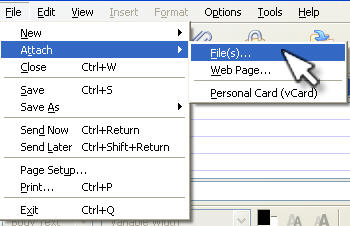
When you select one of these options, a window will open to allow you to navigate your hard drive and find the file(s) you want to attach to your message.
When your recipient gets the email with your attachment, there will be a paper clip icon next to the subject line in their mailbox to let them know that the email contains an attachment.
