The term spam refers to unsolicited emails. Spam is often sent by mass mailing operations that use computers to send millions of messages in a short period of time. Spam has become a popular marketing tactic because it is cheap and easy to send. Also, many spammers set up their accounts overseas in countries where the government may be indifferent to their activities. Or they may use a free email service to set up temporary accounts they can suspend or abandon once they have been reported. For these reasons, reporting spammers often involves a lot of effort with very limited impact.
However, there are some precautions you can take as you use email and the Web to keep yourself from being a victim of spamming:
- Never respond to spam. This includes clicking on any of the advertisements included in the body of a spam email. Once you respond to spam, the spammer knows your email address is active. They then know they can send more spam email to that address. Not only that, it also means they may add your address to databases they can use to spoof the “from” address in future spam emails, a common practice among spammers that makes them hard to track and shut down.
- Be careful when using the “unsubscribe” instructions at the bottom of emails. Only use this option if you are receiving emails you requested. If you didn’t request the emails (such as by subscribing to a newsletter) chances are it’s just a trick to get you to click on the link and let the spammers know they have found an active email address.
- Do not include your primary email address on your website. Spammers use sophisticated applications to crawl the web in search of email addresses they can then use at random to send spam emails. If you do include your address on your web site there are ways to disguise it (such as by spelling out the @ symbol, etc.) but spammers have improved their software over the years to detect some of these practices and get around them. The best safeguard is to not publicize your primary email address, the one you use for only the most important communications.
- Do not share your primary password on bulletin boards or online forums. Just as with web pages, spammers can use software to scan these online communities for email addresses they can add to their databases.
- Avoid using your primary email address in online forms. It is recommended that you use a secondary email address when you sign up for online services or make purchases online. Setting up a secondary address can be done through a free email provider such as Microsoft’s Hotmail, Yahoo, or Google’s GMail.
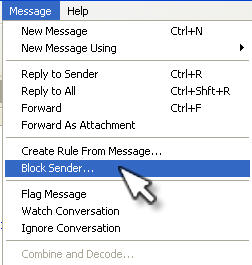
Some email programs include a “junk mail” feature that you can use to get rid of spam emails, including any future ones that come from the same sender. To block junk mail in Outlook Express, select the message in your inbox, and then choose Message, Block Sender.
You will receive a warning to let you know the sender has been added to your blocked list.
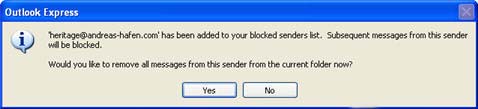
Any future emails from that same sender will be automatically deleted. Note that this Outlook Express junk mail feature is often bypassed by spammers who use jumbled subject lines so that the junk email filter cannot filter their messages.
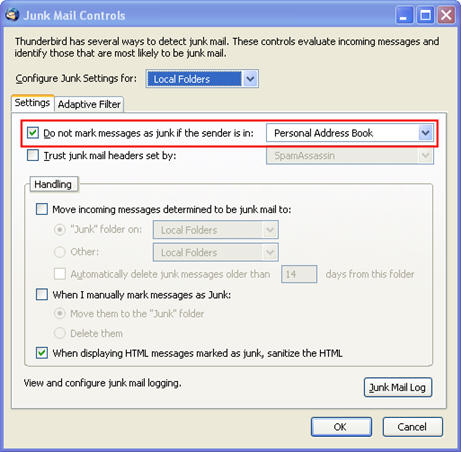
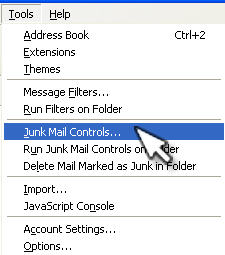
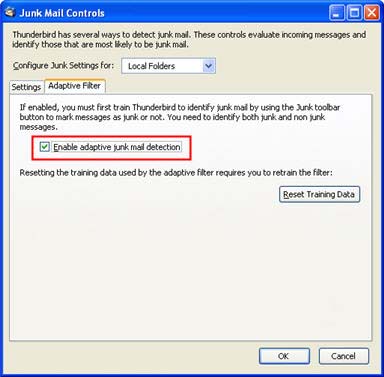
Thunderbird has a more sophisticated junk mail control. The junk mail filter in Thunderbird uses a type of filtering known as Bayesian filtering. Bayesian filters use complicated mathematical formulas to improve the probability of catching spam as the filter is trained over a period of time. The Bayesian filter included in Thunderbird is enabled by default. It can be disabled by choosing Tools, Junk Mail Controls, Adaptive Filter and unchecking the box in that screen.
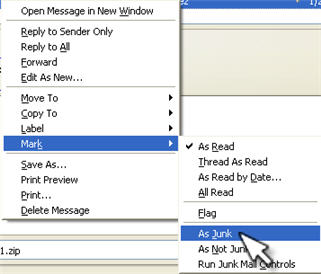
To get started using Thunderbird’s junk mail feature, select the messages you want to designate as junk mail, right click on them, and then select Mark, As Junk.
You can change options for this filter by choosing Tools, Junk Mail Controls. In the dialog box that opens, you can set the junk mail filter to ignore messages from people in your address book. You can also set the filter to move messages to a Junk folder so that you can review them before deleting them, or you can just tell it to automatically delete emails as they arrive in your mailbox.