NOTE: As of January 10, 2017, Microsoft ceased to support Windows Movie Maker. The Windows Movie Maker application will continue to function, however, and can still be used by those who prefer it. We are maintaining the Movie Maker posts within TechEase because we find that many people are still using the application and come to the TechEase site looking for the specific help we offer.
CAUTION: While installation files that were downloaded directly from Microsoft are safe, there are now many reports of non-Microsoft scam websites offering malware versions of Movie Maker for download. While this malware may function at first, it eventually will demand payment for functions such as saving a file. Never download software from an untrusted source.
To add voiceover narration to a movie:
- Click on the Narrate Timeline button (found just above the timeline), or choose Tools > Narrate Timeline…
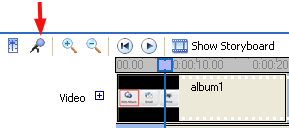
- Click on the Narrate Timeline button (found just above the timeline), or choose Tools > Narrate Timeline…
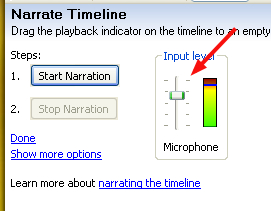
- Place the playhead where you want your narration to start in the timeline.
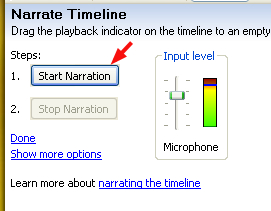
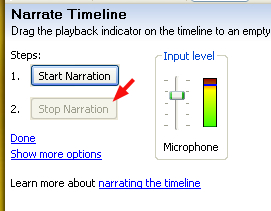
- Click on the Start Narration button and start speaking into the microphone.
- Click on the Stop Narration button whe your’e finished with your narration.
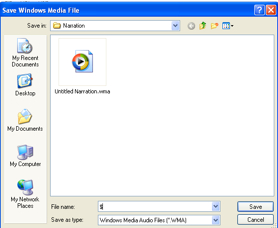
- Enter a name for the audio file and choose a save location, then click on Save.
- The narration will be added to the timeline as an audio clip.
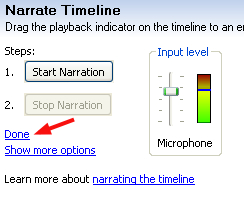
- Click on Done when you’re done with your narration.